A Comprehensive Guide to Writing Integration Tests for Android
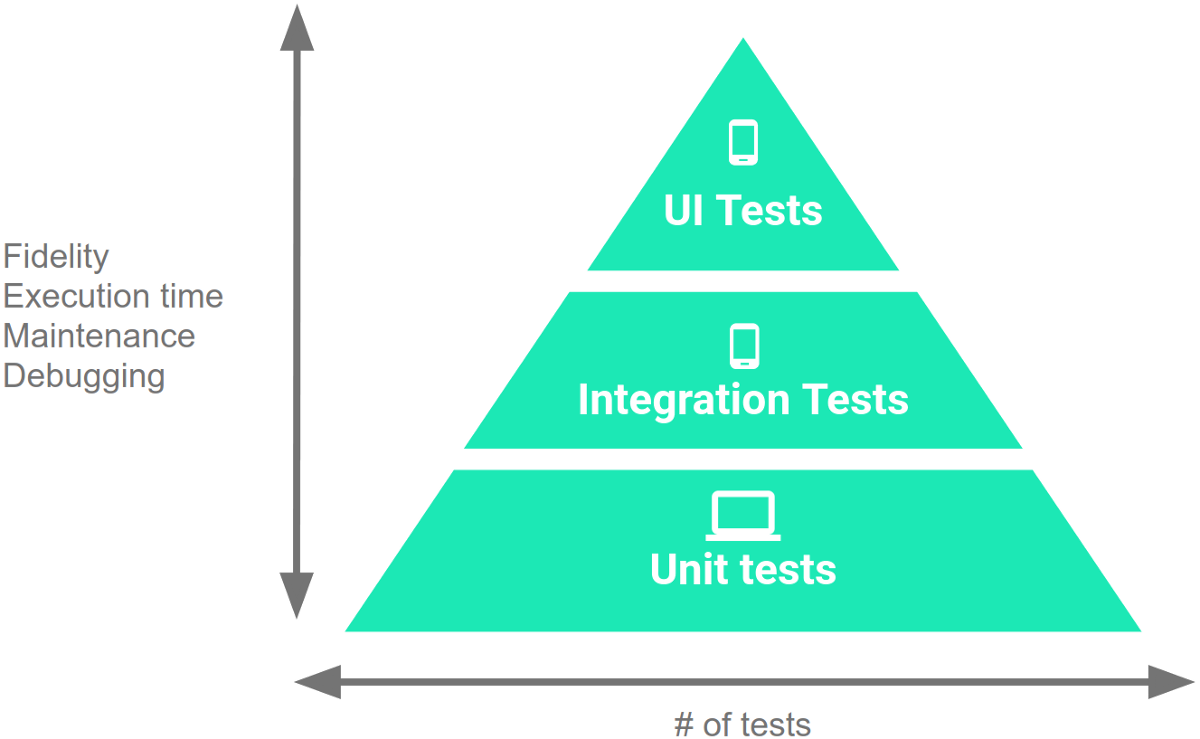 Integration testing is an essential aspect of software testing that ensures different components of your application work together as expected. In the context of Android development, integration tests are used to test interactions between various modules, such as Activities, Fragments, ViewModels, and repositories. This guide will walk you through writing integration tests for your Android application using tools like Espresso and AndroidX Test libraries.
What is Integration Testing?
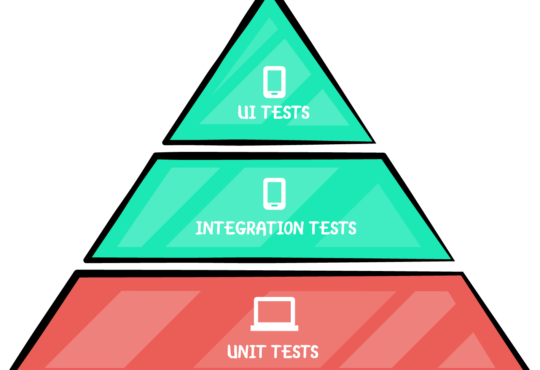
Integration testing involves testing the combination of multiple units or components to ensure they work together correctly. This is crucial for identifying issues that may not surface during unit testing, where individual components are tested in isolation.Why Integration Testing?
- End-to-End Verification: Ensures that different parts of the application work together seamlessly.
- Detect Integration Issues: Identify problems arising from the interaction between components.
- Enhanced Test Coverage: Complements unit testing by covering more complex scenarios.
Setting Up Your Android Project for Integration Testing
- Add Dependencies: Ensure your
build.gradlefile includes the necessary dependencies for Espresso and AndroidX Test libraries.
dependencies {
    // Espresso dependencies
    androidTestImplementation 'androidx.test.espresso:espresso-core:3.4.0'
    androidTestImplementation 'androidx.test.espresso:espresso-intents:3.4.0'

    // AndroidX Test dependencies
    androidTestImplementation 'androidx.test.ext:junit:1.1.3'
    androidTestImplementation 'androidx.test:runner:1.4.0'
    androidTestImplementation 'androidx.test:rules:1.4.0'
}
- Directory Structure: Create a directory named
androidTestundersrcto place your integration test files. This is where you’ll write your test cases.
- src
  - main
  - androidTest
    - java
      - com
        - yourpackage
Writing Your First Integration Test
Let’s consider a simple example where we have aLoginActivity that interacts with a LoginViewModel and a UserRepository.
LoginActivity.java
public class LoginActivity extends AppCompatActivity {
    private LoginViewModel loginViewModel;
    private EditText usernameEditText;
    private EditText passwordEditText;
    private Button loginButton;

    @Override
    protected void onCreate(Bundle savedInstanceState) {
        super.onCreate(savedInstanceState);
        setContentView(R.layout.activity_login);

        usernameEditText = findViewById(R.id.username);
        passwordEditText = findViewById(R.id.password);
        loginButton = findViewById(R.id.login);

        loginViewModel = new ViewModelProvider(this).get(LoginViewModel.class);

        loginButton.setOnClickListener(v -> {
            String username = usernameEditText.getText().toString();
            String password = passwordEditText.getText().toString();
            loginViewModel.login(username, password);
        });

        loginViewModel.getLoginResult().observe(this, loginResult -> {
            if (loginResult.getSuccess()) {
                // Navigate to another activity
            } else {
                // Show error message
            }
        });
    }
}
LoginViewModel.java
public class LoginViewModel extends ViewModel {
    private MutableLiveData<LoginResult> loginResult = new MutableLiveData<>();
    private UserRepository userRepository;

    public LoginViewModel(UserRepository userRepository) {
        this.userRepository = userRepository;
    }

    public void login(String username, String password) {
        // Perform login operation
        boolean success = userRepository.login(username, password);
        loginResult.setValue(new LoginResult(success));
    }

    public LiveData<LoginResult> getLoginResult() {
        return loginResult;
    }
}
LoginActivityTest.java
import androidx.test.ext.junit.runners.AndroidJUnit4;
import androidx.test.rule.ActivityTestRule;
import androidx.test.espresso.intent.Intents;

import org.junit.Before;
import org.junit.Rule;
import org.junit.Test;
import org.junit.runner.RunWith;

import static androidx.test.espresso.Espresso.onView;
import static androidx.test.espresso.action.ViewActions.click;
import static androidx.test.espresso.action.ViewActions.typeText;
import static androidx.test.espresso.assertion.ViewAssertions.matches;
import static androidx.test.espresso.matcher.ViewMatchers.withId;
import static androidx.test.espresso.matcher.ViewMatchers.withText;

@RunWith(AndroidJUnit4.class)
public class LoginActivityTest {

    @Rule
    public ActivityTestRule<LoginActivity> activityRule = new ActivityTestRule<>(LoginActivity.class);

    @Before
    public void setUp() {
        Intents.init();
    }

    @Test
    public void testLoginSuccess() {
        // Type username and password
        onView(withId(R.id.username)).perform(typeText("testuser"));
        onView(withId(R.id.password)).perform(typeText("password123"));

        // Click login button
        onView(withId(R.id.login)).perform(click());

        // Check the next activity is displayed (assuming it changes to MainActivity)
        intended(hasComponent(MainActivity.class.getName()));
    }

    @Test
    public void testLoginFailure() {
        // Type username and password
        onView(withId(R.id.username)).perform(typeText("wronguser"));
        onView(withId(R.id.password)).perform(typeText("wrongpassword"));

        // Click login button
        onView(withId(R.id.login)).perform(click());

        // Check error message is displayed
        onView(withId(R.id.error_message)).check(matches(withText("Login failed")));
    }
}
- Explanation:
@RunWith(AndroidJUnit4.class)specifies that the test should be run using the AndroidJUnit4 runner.ActivityTestRuleis used to launch the activity under test.onView(withId(R.id.username)).perform(typeText("testuser"))types text into the username field.onView(withId(R.id.login)).perform(click())clicks the login button.intended(hasComponent(MainActivity.class.getName()))checks that the MainActivity is launched after a successful login.matches(withText("Login failed"))verifies that the error message is displayed on login failure.
Need Debugging? – Try RobotQA and Start Debugging on Real Devices. Download Plugin
Running Your Integration Tests
You can run your integration tests directly from Android Studio:- Right-click on the test file or directory in the Project view.
- Select
Run 'Tests in ...'.
./gradlew connectedAndroidTest