Creating a Dynamic UI with AppCompat DayNight Theme in Android
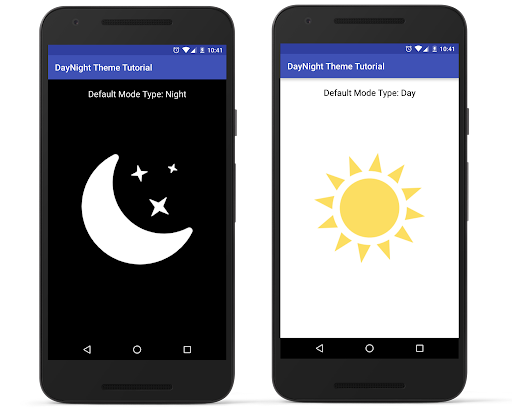
 The AppCompat DayNight theme is a part of the AndroidX library, enabling your app to automatically switch between light and dark themes based on the user’s device settings or preferences. This feature helps in creating a more dynamic and user-friendly UI, providing better readability in various lighting conditions. In this blog, we will walk through the steps to implement a simple Android UI using the AppCompat DayNight theme.
Setting Up the AppCompat DayNight Theme
First, ensure you have the necessary dependencies in yourbuild.gradle file.
Step 1: Add Dependencies
Open yourbuild.gradle file and add the AndroidX AppCompat dependency:
dependencies {
    implementation 'androidx.appcompat:appcompat:1.3.1'
    implementation 'androidx.core:core-ktx:1.6.0'
}
Step 2: Define the Theme in styles.xml
Open yourres/values/styles.xml file and define the AppCompat DayNight theme:
<resources>
    <!-- Base application theme -->
    <style name="AppTheme" parent="Theme.AppCompat.DayNight.DarkActionBar">
        <!-- Customize your theme here -->
        <item name="colorPrimary">@color/purple_500</item>
        <item name="colorPrimaryDark">@color/purple_700</item>
        <item name="colorAccent">@color/teal_200</item>
    </style>
</resources>
This setup ensures that your application uses the DayNight theme with a dark action bar by default.
Example: Creating a Simple UI with Toggle for DayNight Theme
Let’s create a simple UI that includes a toggle button to switch between day and night modes manually.Step 3: Define the Layout
Create an XML layout file (activity_main.xml) with the following content:
<LinearLayout
    xmlns:android="http://schemas.android.com/apk/res/android"
    android:layout_width="match_parent"
    android:layout_height="match_parent"
    android:orientation="vertical"
    android:padding="16dp"
    android:gravity="center">

    <TextView
        android:id="@+id/greetingTextView"
        android:layout_width="wrap_content"
        android:layout_height="wrap_content"
        android:text="Hello, World!"
        android:textSize="24sp"
        android:layout_marginBottom="24dp"/>

    <Button
        android:id="@+id/toggleThemeButton"
        android:layout_width="wrap_content"
        android:layout_height="wrap_content"
        android:text="Toggle Theme"/>

</LinearLayout>
Step 4: Initialize in Activity
In yourMainActivity.java or MainActivity.kt file, initialize the views and add functionality to toggle the theme.
Java
package com.example.daynighttheme;

import android.content.SharedPreferences;
import android.os.Bundle;
import android.widget.Button;
import android.widget.TextView;
import androidx.appcompat.app.AppCompatActivity;
import androidx.appcompat.app.AppCompatDelegate;

public class MainActivity extends AppCompatActivity {

    @Override
    protected void onCreate(Bundle savedInstanceState) {
        super.onCreate(savedInstanceState);
        setContentView(R.layout.activity_main);

        TextView greetingTextView = findViewById(R.id.greetingTextView);
        Button toggleThemeButton = findViewById(R.id.toggleThemeButton);

        // Load the saved theme preference
        SharedPreferences sharedPreferences = getSharedPreferences("ThemePref", MODE_PRIVATE);
        boolean isNightMode = sharedPreferences.getBoolean("NightMode", false);

        if (isNightMode) {
            AppCompatDelegate.setDefaultNightMode(AppCompatDelegate.MODE_NIGHT_YES);
        } else {
            AppCompatDelegate.setDefaultNightMode(AppCompatDelegate.MODE_NIGHT_NO);
        }

        toggleThemeButton.setOnClickListener(v -> {
            boolean nightMode = (AppCompatDelegate.getDefaultNightMode() == AppCompatDelegate.MODE_NIGHT_YES);
            if (nightMode) {
                AppCompatDelegate.setDefaultNightMode(AppCompatDelegate.MODE_NIGHT_NO);
                saveThemePreference(false);
            } else {
                AppCompatDelegate.setDefaultNightMode(AppCompatDelegate.MODE_NIGHT_YES);
                saveThemePreference(true);
            }
        });
    }

    private void saveThemePreference(boolean isNightMode) {
        SharedPreferences.Editor editor = getSharedPreferences("ThemePref", MODE_PRIVATE).edit();
        editor.putBoolean("NightMode", isNightMode);
        editor.apply();
    }
}
Kotlin
package com.example.daynighttheme

import android.content.SharedPreferences
import android.os.Bundle
import android.widget.Button
import android.widget.TextView
import androidx.appcompat.app.AppCompatActivity
import androidx.appcompat.app.AppCompatDelegate

class MainActivity : AppCompatActivity() {

    override fun onCreate(savedInstanceState: Bundle?) {
        super.onCreate(savedInstanceState)
        setContentView(R.layout.activity_main)

        val greetingTextView: TextView = findViewById(R.id.greetingTextView)
        val toggleThemeButton: Button = findViewById(R.id.toggleThemeButton)

        // Load the saved theme preference
        val sharedPreferences: SharedPreferences = getSharedPreferences("ThemePref", MODE_PRIVATE)
        val isNightMode = sharedPreferences.getBoolean("NightMode", false)

        if (isNightMode) {
            AppCompatDelegate.setDefaultNightMode(AppCompatDelegate.MODE_NIGHT_YES)
        } else {
            AppCompatDelegate.setDefaultNightMode(AppCompatDelegate.MODE_NIGHT_NO)
        }

        toggleThemeButton.setOnClickListener {
            val nightMode = AppCompatDelegate.getDefaultNightMode() == AppCompatDelegate.MODE_NIGHT_YES
            if (nightMode) {
                AppCompatDelegate.setDefaultNightMode(AppCompatDelegate.MODE_NIGHT_NO)
                saveThemePreference(false)
            } else {
                AppCompatDelegate.setDefaultNightMode(AppCompatDelegate.MODE_NIGHT_YES)
                saveThemePreference(true)
            }
        }
    }

    private fun saveThemePreference(isNightMode: Boolean) {
        val editor: SharedPreferences.Editor = getSharedPreferences("ThemePref", MODE_PRIVATE).edit()
        editor.putBoolean("NightMode", isNightMode)
        editor.apply()
    }
}
Need Debugging? – Try RobotQA and Start Debugging on Real Devices. Download Plugin